

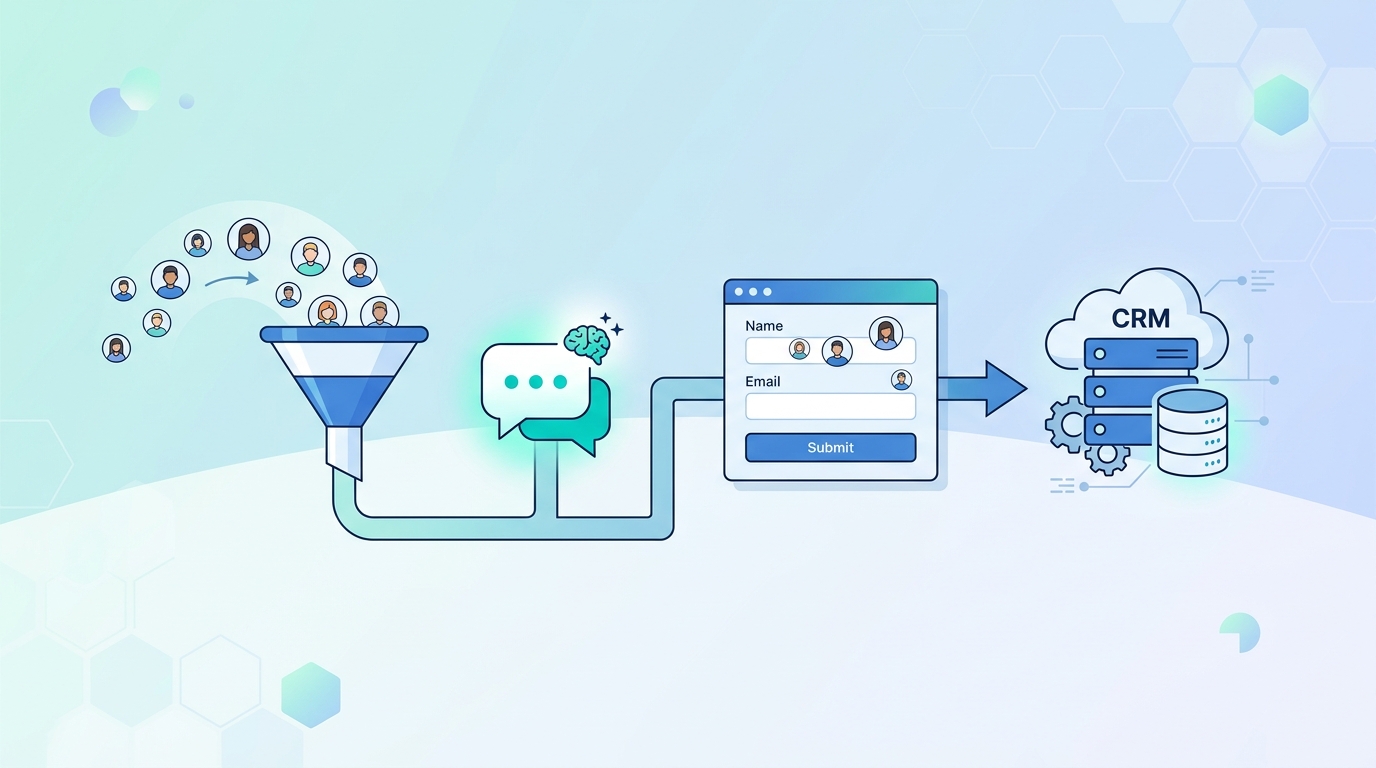
Most website visitors leave without a trace. They browse your pricing page, read a case study, and disappear — taking their contact details with them. An AI chat widget changes that equation. Instead of waiting for visitors to fill out a form, your chatbot starts the conversation proactively and captures lead information as part of a natural exchange.
Here's how to set it up to actually generate leads — not just answer questions.
The Lead Generation Mindset Shift
Support chatbots are reactive. They wait for someone to ask a question.
Lead generation chatbots are proactive. They initiate conversations, qualify interest, and collect contact information — all while adding value.
The good news is you don't need two separate bots. Paperchat can do both. The key is configuring it with lead generation intent built into the flow.
Step 1: Set Up Proactive Triggers
Proactive messaging is the single biggest lever for lead capture. Instead of waiting for a visitor to click the chat bubble, your bot opens the conversation automatically based on visitor behavior.
Configure these triggers in Settings → Proactive Messages:
Time on Page
After a visitor has been on a key page for 30–60 seconds, trigger a message:
"Hey! Looks like you're checking out our pricing. Have any questions about what's included in each plan?"
This catches visitors who are actively evaluating — prime lead territory.
Scroll Depth
When a visitor scrolls 70%+ down your sales page, they're engaged. Trigger:
"You've been reading closely — want me to help you figure out which plan fits your business?"
Exit Intent
When a visitor moves their cursor toward the browser's close button or address bar, trigger a last-ditch message:
"Before you go — can I answer any questions or help you get started with a free trial?"
Exit-intent messages have a high conversion rate precisely because they catch visitors at the decision moment.
Page-Specific Triggers
Set different messages for different pages:
- Pricing page → "Which plan are you considering?"
- Case studies page → "Want me to find a case study relevant to your industry?"
- Features page → "Any features you'd like to see in action?"
Step 2: Build a Lead Qualification Flow
Once a visitor engages, the bot should qualify them before collecting contact details. Jumping straight to "What's your email?" feels transactional and off-putting.
Instead, lead with value. A good qualification flow looks like:
- Open with a relevant question — "What are you trying to solve?"
- Follow up based on their answer — "How many customers do you support each month?"
- Offer something of value — "I can show you exactly how that would work in your setup."
- Then request contact info — "What email should I send that to?"
By the time you ask for their email, they've already gotten value from the conversation. The ask feels natural.
Step 3: Add a Lead Capture Form
Paperchat includes a built-in lead capture card you can insert at any point in the conversation flow. It appears as a mini-form inside the chat:
- Name
- Company (optional)
- Phone (optional)
You control which fields appear and which are required. For most businesses, name and email is enough to start.
When the form is submitted, the lead is:
- Saved to your Paperchat contacts dashboard
- Synced to your CRM (HubSpot, Salesforce, Pipedrive — configurable)
- Triggering an email notification to your sales team
A lead captured at 11pm on a Saturday gets into your CRM in real time. Your sales rep sees it Monday morning with full context.
Step 4: Use Conversation Data to Score Leads
Not all chat leads are equal. Paperchat logs the full conversation, which gives you qualitative context — but you can also set up lead scoring rules based on what was said:
- Mentioned "enterprise" or "team" → high priority
- Asked about integrations → likely technical buyer
- Mentioned a competitor by name → actively evaluating
- Asked about pricing immediately → budget-conscious, faster decision
Review your chat logs weekly in the early days to identify the language patterns that predict high-quality leads. Then build those signals into your scoring.
Step 5: Sync Leads to Your CRM or Email Tool
The real power of chat lead capture is what happens after the conversation. Configure integrations in Settings → Integrations:
- HubSpot — creates a contact and logs the conversation as a note
- Salesforce — creates a lead with a custom field for the chat source
- Mailchimp / ConvertKit — adds the email to a list and triggers a welcome sequence
- Slack — posts a notification to your #sales channel for immediate follow-up
Use the Zapier integration for anything not natively supported — there are thousands of apps available.
Measuring Lead Generation Performance
Set up a simple dashboard to track these metrics weekly:
| Metric | What It Tells You |
|---|---|
| Widget open rate | % of visitors who open the chat |
| Conversation rate | % of opens that turn into a conversation |
| Lead capture rate | % of conversations that produce a lead |
| Lead-to-opportunity rate | % of chat leads that become sales opportunities |
Most Paperchat users see a 2–5x improvement in lead capture rate compared to static contact forms, because the conversation is happening while intent is high.
Your website is already getting traffic. An AI chat widget turns that traffic into conversations — and conversations into leads. The setup takes less than an hour. After that, your chatbot is qualifying visitors and capturing contact details around the clock, even when your sales team is offline.
More Articles
How to Add a Live Chat Widget to Your Website in Under 10 Minutes
A step-by-step guide to installing Paperchat's AI chat widget on any website — no developer required.
March 29, 2026
How to Use AI Chat to Book More Meetings with Cal.com
Connect Paperchat to Cal.com so your AI chatbot can qualify leads and book meetings directly in the chat window — without any back-and-forth emails.
March 29, 2026