

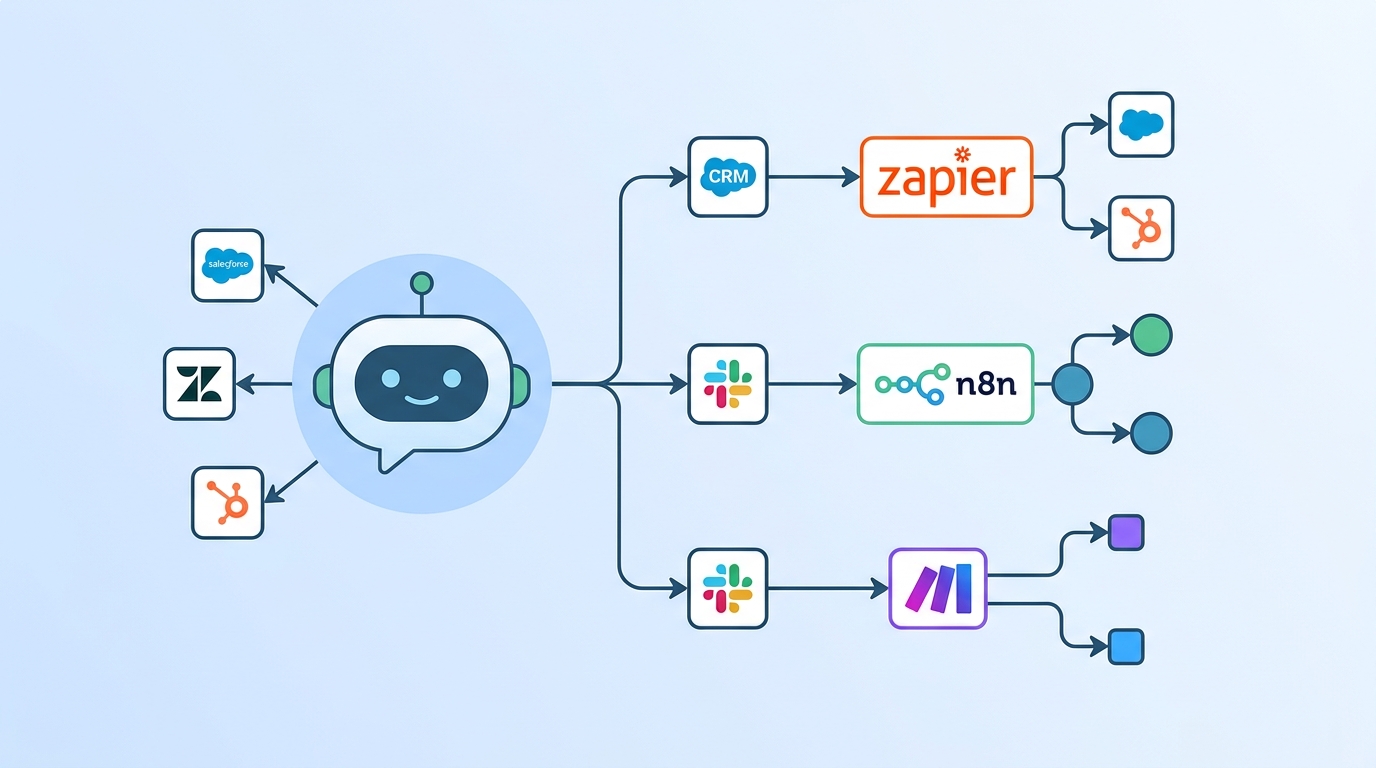
Your AI chatbot becomes significantly more powerful the moment you connect it to the rest of your business tools. A lead captured in chat should flow into your CRM. A support escalation should create a ticket. A completed conversation should trigger a follow-up email.
Paperchat integrates with Zapier, n8n, and Make (formerly Integromat) — three of the most popular automation platforms — giving you a bridge to thousands of apps without writing custom code.
Understanding Paperchat Webhooks
Before diving into specific platforms, it helps to understand how Paperchat sends data to automation tools: webhooks.
A webhook is a URL that Paperchat calls whenever a specific event occurs. You create this URL in your automation platform (Zapier, n8n, or Make), paste it into Paperchat, and from that point forward, every time that event fires, your automation runs.
Paperchat supports webhooks for the following events:
| Event | When It Fires |
|---|---|
conversation.started | A visitor opens the chat and sends their first message |
lead.captured | A visitor submits their contact information |
conversation.escalated | The chat is handed over to a human agent |
conversation.ended | The chat session closes |
message.received | Any new message from a visitor |
Each webhook payload includes the conversation ID, visitor information, chat transcript, and any collected lead data.
Connecting to Zapier
Zapier is the most beginner-friendly of the three platforms. Here's how to set up a basic "new lead → CRM" Zap:
Step 1: Create a new Zap
In Zapier, click + Create → Zaps. For the trigger, search for Webhooks by Zapier and select Catch Hook.
Step 2: Copy the webhook URL
Zapier generates a unique URL for this Zap. Copy it.
Step 3: Add it to Paperchat
In Paperchat, go to Settings → Integrations → Webhooks and paste the URL. Select lead.captured as the trigger event. Save.
Step 4: Test the trigger
Go to your live chat and submit a test lead. Zapier should receive the webhook data within seconds.
Step 5: Add your action
Now add an action step to your Zap — for example:
- HubSpot → Create or Update Contact
- Pipedrive → Create Person + Deal
- Google Sheets → Add Row
- Slack → Send Channel Message
- Gmail → Send Email
Map the Paperchat fields (name, email, conversation summary) to the fields in your destination app. Turn the Zap on.
From this point forward, every chat lead automatically appears in your chosen tool within seconds of submission.
Connecting to n8n
n8n is the open-source alternative to Zapier — self-hostable, more flexible, and better suited for technical users who want full control over their automation logic.
Step 1: Create a Webhook node
In your n8n workflow, add a Webhook node. Set the HTTP method to POST and copy the generated URL.
Step 2: Configure Paperchat
Paste the URL into Paperchat's webhook settings and select your trigger event.
Step 3: Build your workflow
After the webhook node, add any combination of:
- HTTP Request — call any external API
- Set — transform or map fields
- IF — branch logic based on lead data (e.g., route enterprise leads differently)
- Send Email — via SMTP or a provider node
- HubSpot / Salesforce / Pipedrive — native CRM nodes
n8n's node-based editor makes it easy to build multi-step, branching workflows. For example:
Webhook → IF (company = enterprise) → Salesforce (create lead)
                                    → Slack (alert sales team)
        → ELSE → Mailchimp (add to nurture list)
Running n8n
If you don't want to self-host, n8n Cloud is available with a free tier that covers most small-to-medium automation needs.
Connecting to Make (formerly Integromat)
Make sits between Zapier (simple) and n8n (technical) in terms of complexity. It's particularly strong for multi-step scenarios and data transformation.
Step 1: Create a scenario
In Make, click + Create a new scenario. Search for the Webhooks module and select Custom webhook.
Step 2: Generate and copy the webhook URL
Make generates a unique URL. Copy it into Paperchat's webhook settings.
Step 3: Determine the data structure
Trigger a test chat lead. Make will receive the payload and automatically infer the data structure — you'll see all available fields listed for mapping.
Step 4: Add modules
Chain together any Make modules:
- CRM modules — HubSpot, Salesforce, Zoho
- Communication — Gmail, Outlook, Slack, SMS
- Project management — Notion, Asana, Monday.com, Jira
- Databases — Airtable, Google Sheets
Make's visual interface shows data flowing between modules, making it easy to debug when something isn't mapped correctly.
Practical Automation Ideas
Here are some workflows worth building:
Lead to CRM + Slack alert When a lead is captured → create contact in HubSpot → post message to #sales Slack channel with name, email, and conversation summary.
Escalation to helpdesk ticket When a conversation is escalated → create ticket in Zendesk or Freshdesk → assign to the appropriate team → send confirmation email to the visitor.
Conversation ended → follow-up email When a conversation ends → wait 15 minutes → send a follow-up email via your email tool with a link to relevant resources or a calendar booking link.
High-value lead detection When a lead is captured → check if the conversation transcript contains "enterprise" or "team of 50+" → if yes, notify your sales director directly via email and Slack.
Using the Paperchat API Directly
For developers who prefer not to use automation platforms, Paperchat also exposes a REST API. You can:
- Query conversation history
- Retrieve lead data
- Trigger bot responses programmatically
- Configure webhooks via API rather than the dashboard
Full API documentation is available in the Paperchat developer docs.
The real power of Paperchat isn't just the conversations — it's what happens after them. Connect your chatbot to your existing business tools and every chat interaction becomes a data point that drives action. Set up your first Zap or workflow today and watch the leads flow automatically into the tools your team already uses.
More Articles
How to Capture More Leads with an AI Chat Widget on Your Website
Turn passive website visitors into qualified leads using Paperchat's AI chat widget — with proactive messaging, lead forms, and CRM sync.
March 29, 2026
How to Add a Live Chat Widget to Your Website in Under 10 Minutes
A step-by-step guide to installing Paperchat's AI chat widget on any website — no developer required.
March 29, 2026