

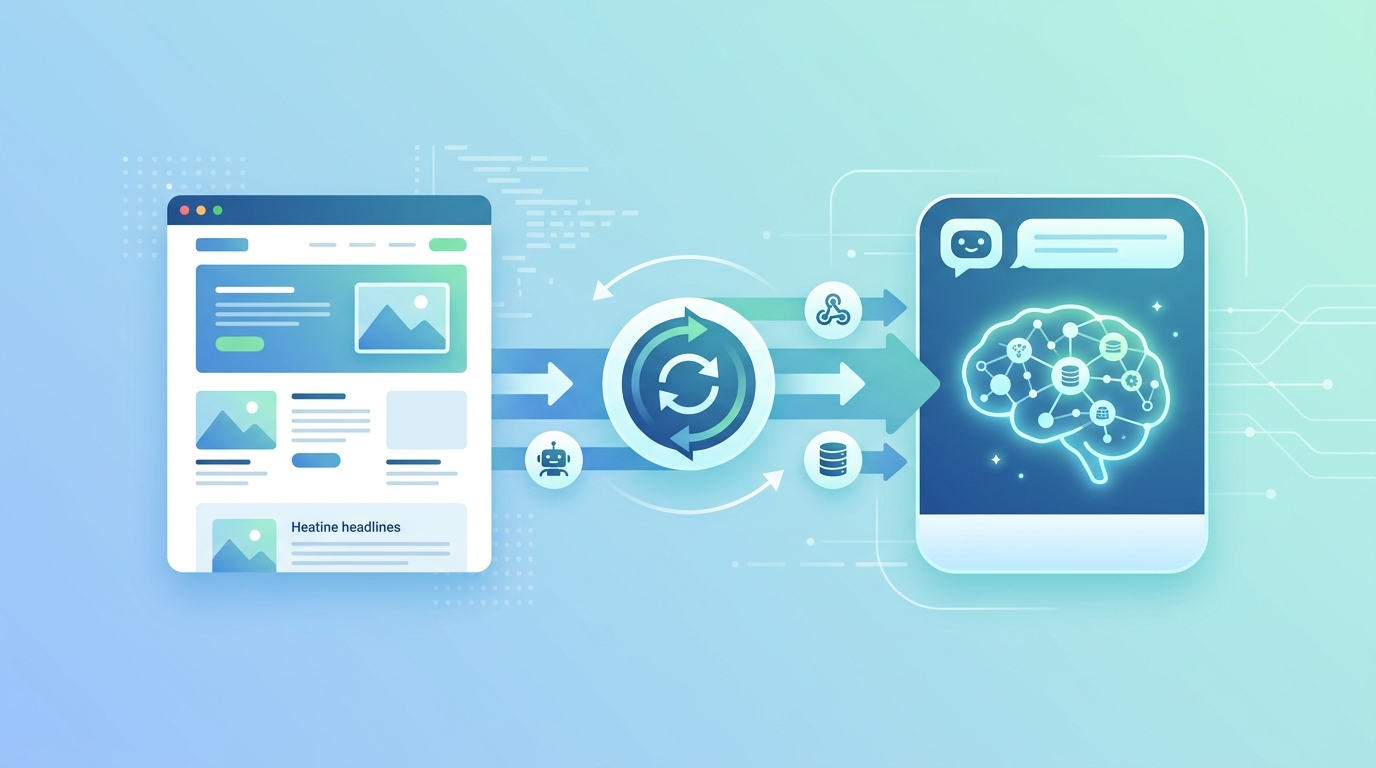
One of the most common problems with AI chatbots: they go stale. You update your pricing, launch a new feature, change a policy — and weeks later you discover your chatbot is still quoting the old information. A customer makes a decision based on wrong data. Trust erodes.
The fix is automatic content sync. Here's how to set it up so your Paperchat knowledge base stays current with your website, automatically.
Why Sync Matters
Your website content and your chatbot knowledge base need to be the same document. When they drift apart, you get:
- Wrong answers — pricing, feature availability, or policy information that's outdated
- Contradictions — a visitor reads your updated pricing page but the chatbot quotes an old price
- Customer confusion — conflicting signals destroy confidence in your brand
Manual updates work for small sites that rarely change. For most businesses, you need automation.
Option 1: Scheduled Crawl (Simplest)
The easiest approach: tell Paperchat to re-crawl your website on a schedule.
In Settings → Knowledge Base → Website Sources, select your crawled URL and click Sync Settings. Configure:
- Frequency — Daily, weekly, or custom cron schedule
- Crawl depth — How many levels deep to follow links
- URL patterns — Include or exclude specific paths (e.g., crawl
/products/*but skip/blog/*) - Change detection — Only re-index pages that have changed since the last crawl
For a typical business website, a daily crawl is usually sufficient and runs automatically without any action from you.
When to use scheduled crawls:
- Your site is built on a CMS (WordPress, Webflow, Squarespace)
- Content changes happen a few times per week
- You don't have developer resources to set up webhooks
Option 2: Webhook-Triggered Sync (Faster)
Scheduled crawls are convenient, but they introduce a lag. If you update your pricing at 9am, the chatbot might still quote old prices until tonight's scheduled crawl runs.
Webhook-triggered sync eliminates that lag. Instead of crawling on a schedule, Paperchat re-indexes a page the moment it changes.
Setting It Up
Paperchat exposes a sync API endpoint:
POST https://api.paperchat.ai/v1/sync
Content-Type: application/json
Authorization: Bearer YOUR_API_KEY

{
  "source_type": "url",
  "url": "https://yoursite.com/pricing",
  "action": "reindex"
}
Calling this endpoint tells Paperchat to immediately fetch, parse, and re-index that URL.
Triggering From Your CMS
Most modern CMSes support webhooks on content publish. Configure your CMS to call the Paperchat sync endpoint whenever a page is published or updated.
WordPress (using WP Webhooks plugin):
- Install WP Webhooks
- Create a trigger: "Post Published" or "Post Updated"
- Set the destination URL to your Paperchat sync endpoint
- Map the post URL to the
urlfield in the payload
Webflow:
- Go to Project Settings → Integrations → Webhooks
- Add a webhook for the
page_publishedevent - Use a Zapier or Make middleware step to transform the payload and call the Paperchat API
Contentful / Sanity / Strapi:
- These headless CMSes support webhook triggers natively
- Configure a webhook on content publish events
- Use n8n or Make to map the content URL to the Paperchat sync endpoint
Option 3: Full Content API Push (Most Precise)
For teams with developer resources, the most precise approach bypasses crawling entirely. Instead of Paperchat fetching your content, you push it directly.
The Paperchat API accepts content as structured JSON:
POST /v1/knowledge-base/documents

{
  "title": "Pricing Plans",
  "content": "Starter: $29/month. Includes 1 chatbot, 1,000 conversations...",
  "metadata": {
    "source": "pricing-page",
    "updated_at": "2026-03-29T10:00:00Z"
  }
}This gives you full control over what gets indexed. You can:
- Strip navigation and footer content before pushing
- Include metadata that improves retrieval (page category, last modified date)
- Push content from sources that aren't publicly accessible via URL (internal wikis, private docs)
Set this up as part of your CMS publishing pipeline — every time a content editor publishes, the updated content is pushed to Paperchat in the same deploy step.
Handling Content Deletions
Sync isn't just about additions and updates — it's also about removals. If you delete a product from your store or retire a feature, the chatbot should stop referencing it.
Configure deletion handling in Settings → Knowledge Base → Sync:
- Auto-detect orphaned content — Paperchat compares crawl results over time and removes pages that no longer exist
- Manual deletion via API —
DELETE /v1/knowledge-base/documents/{id}removes a specific document - Scheduled cleanup — weekly review of indexed content against your current sitemap
Excluding Content from Sync
Not everything on your website should go into your chatbot's knowledge base. Exclude:
- Blog posts — unless your support team wants the bot to reference them
- Legal pages — terms and privacy policies in full legal language don't make great chatbot responses
- Staging or draft pages — use URL pattern exclusions to skip
/staging/*or?preview=trueURLs - Duplicate content — pagination pages, category archives, or tag pages that repeat the same information
Configure exclusions in Settings → Knowledge Base → URL Filters.
Monitoring Sync Health
Set up alerts to catch sync failures before they affect customers:
- Sync success notifications — Paperchat can send an email or webhook on successful sync completion
- Sync failure alerts — get notified immediately if a scheduled crawl fails
- Content freshness dashboard — the knowledge base dashboard shows when each source was last indexed
Review the freshness dashboard weekly. Any source not synced in more than 7 days warrants investigation.
Automatic content sync is the difference between a chatbot that's a liability (confidently giving wrong answers) and one that's an asset (always accurate, always current). Set up the sync method that fits your CMS and publishing workflow, and you'll never have to manually update your knowledge base again.
More Articles
How to Train an AI Chatbot on Your Own Business Data
Learn how to feed your website, documents, and FAQs into Paperchat so your AI chatbot answers like an expert on your business.
March 29, 2026
How to Connect Your AI Chatbot to Zapier, n8n, and Make
Automate workflows triggered by chat events — send leads to your CRM, notify your team on Slack, create support tickets, and more.
March 29, 2026